
THE PRODUCT
Two Modules.
One Job Record.
No Re-entry.
Most contractors end up with an accounting system that knows the money and a project tool that knows the work, and a person whose job is to reconcile the two. myWorkflow puts both on the same record.
How myWorkflow Works With QuickBooks
QuickBooks Online stays your system of record. myWorkflow reads from it on a daily sync — one direction, read-only — and layers job-level structure on top: divisions, branches, job statuses, contract values, and the cost detail behind each number. Your PMs then work in that same structure instead of a parallel spreadsheet.
-
Step 1
QuickBooks Online
Your books, untouched.
-
Step 2
myWorkflow
Daily read-only sync, job-level WIP, saved Views.
-
Step 3
Your team
Owner, Controller, and PMs each in their own View, with their own permissions.
Nothing flows back. myWorkflow reads from QuickBooks Online and never writes to it.
1. WIP Reporting
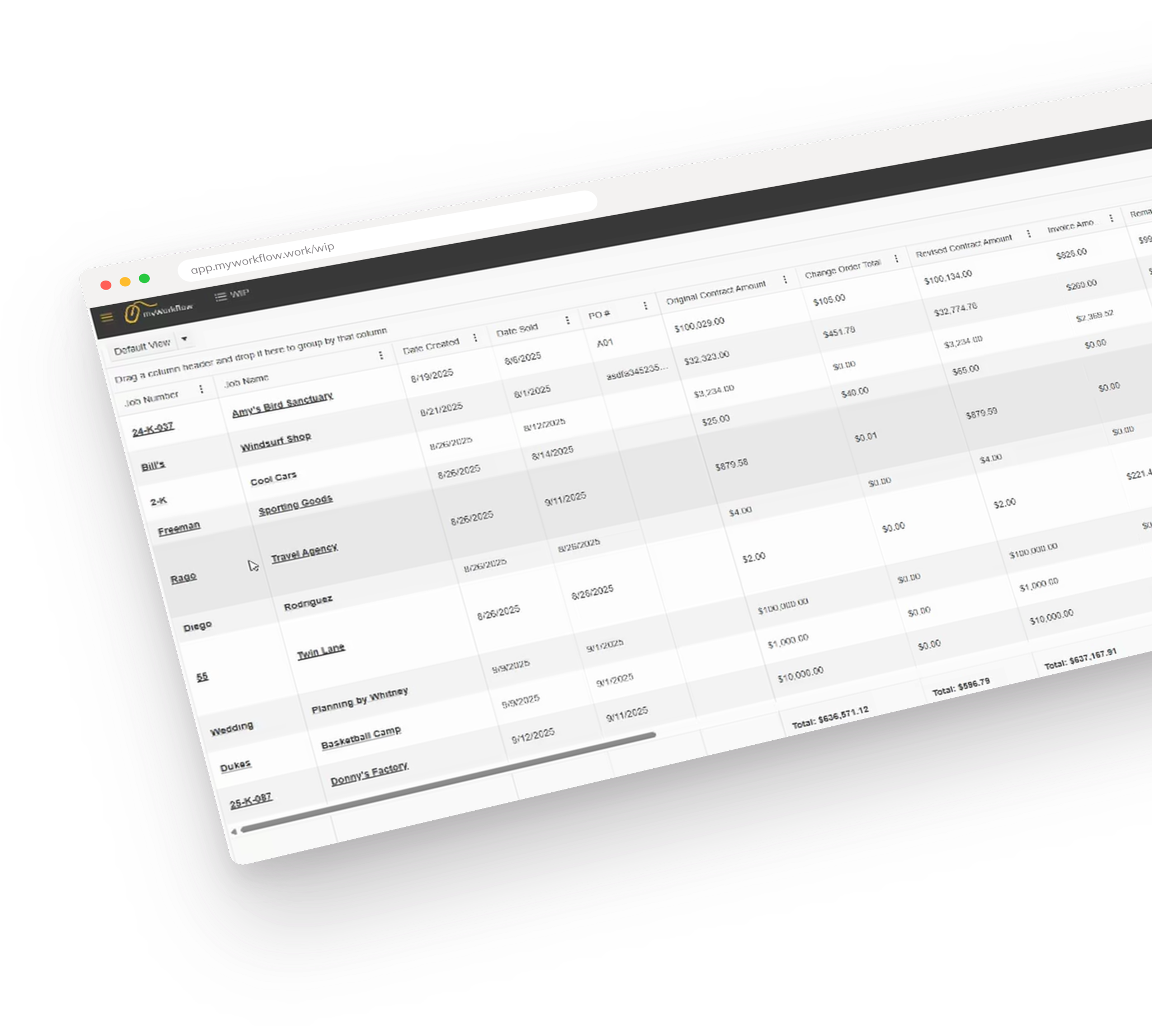
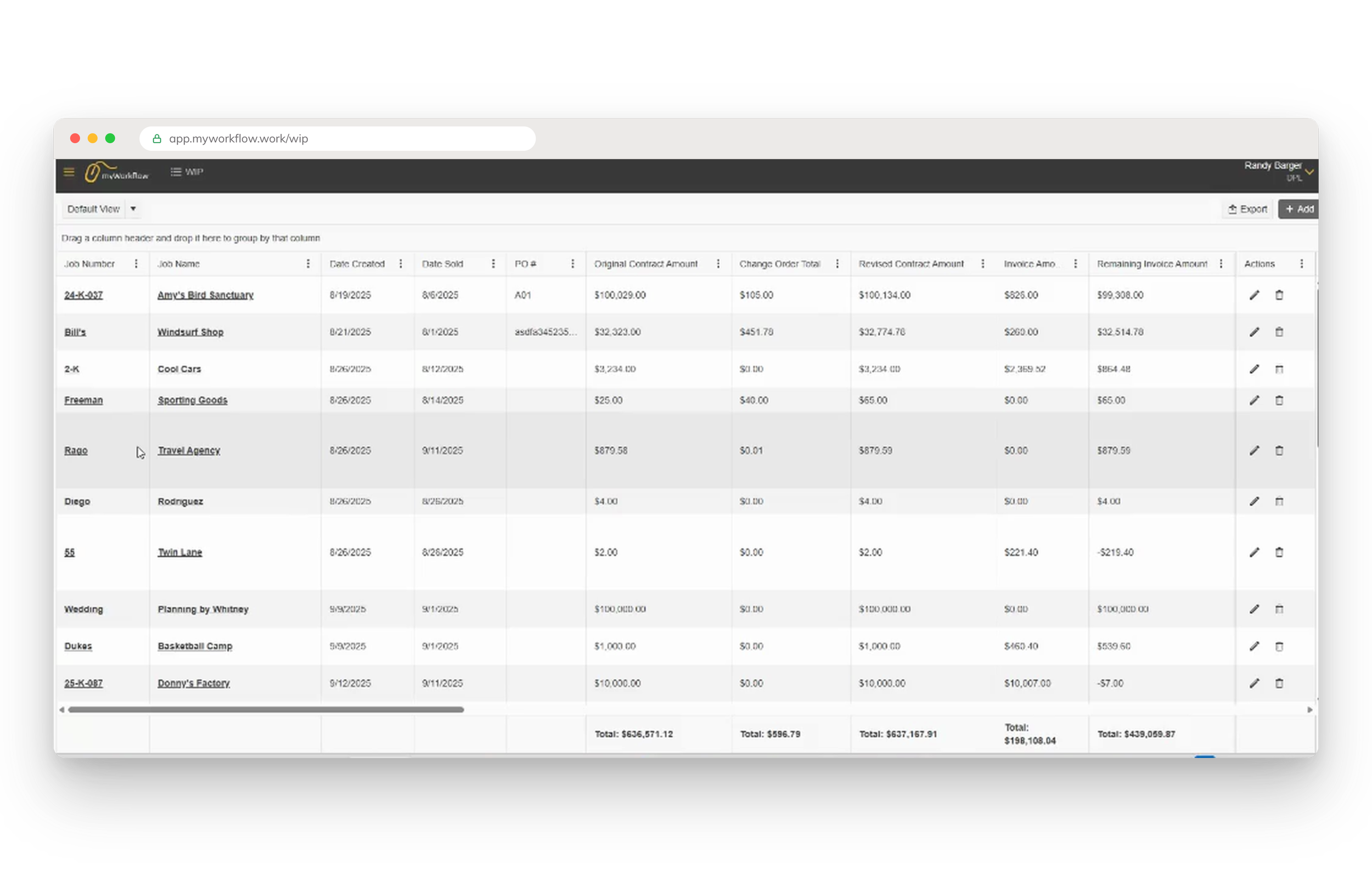
Every active job on one screen, with contract value, billings to date, cash received, cost to date, and margin sitting next to each other. Build a View that matches how you actually manage — by division, by PM, by status, by whatever matters this quarter — save it, and share it with the people who need it. Every total is traceable: hover it and myWorkflow shows you the calculation.
Live sync from QuickBooks Online. One-way and read-only.
Contract value, billing, cash, cost, and margin on a single screen.
Fully customizable Views. Group, filter, sort, save, share.
Hover any total to see exactly how it was calculated.
Surfaces underbilled jobs and backlog gaps without a manual pass.
Role-based, field-level permissions across the same view.
2. Project Management
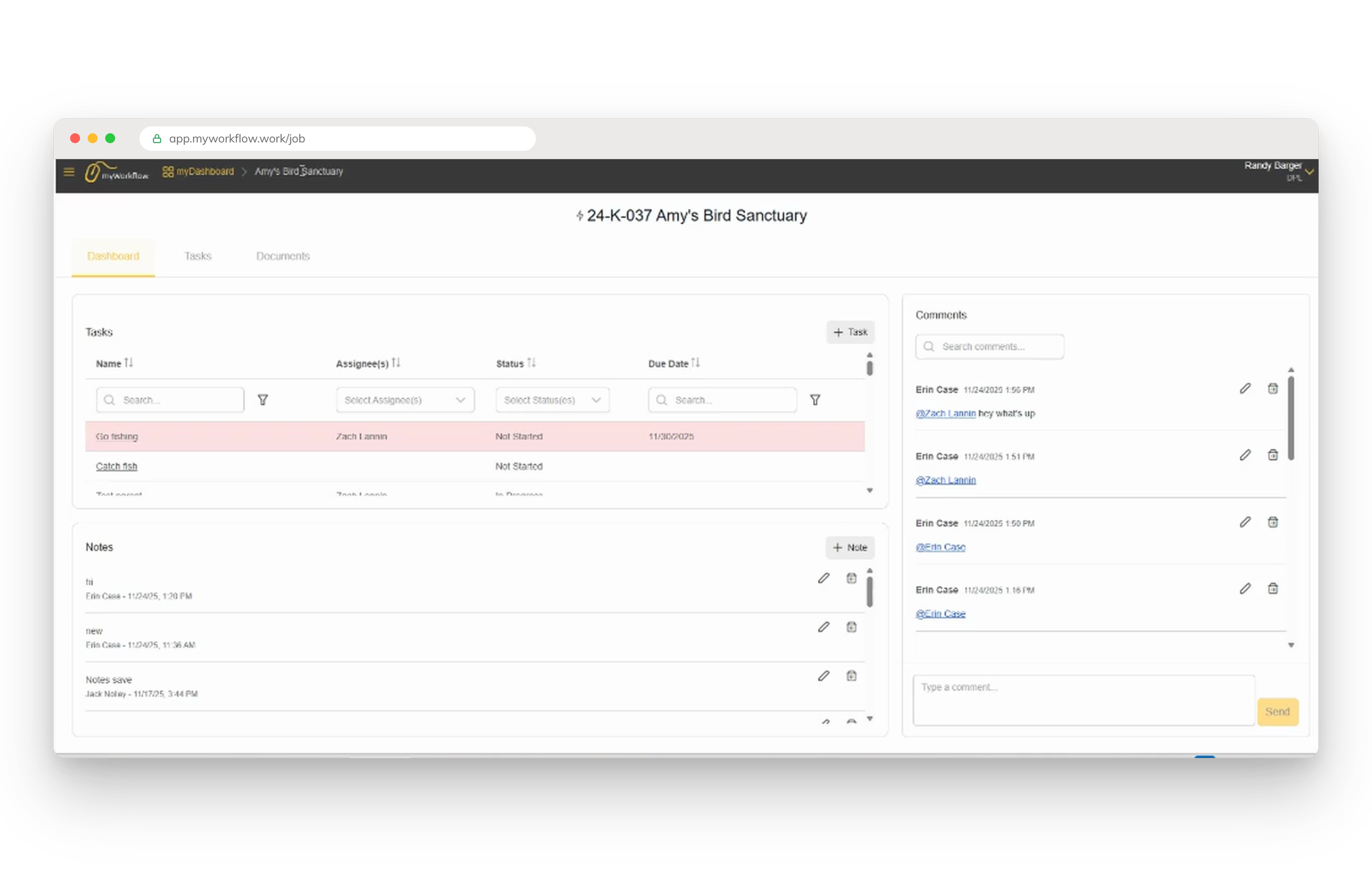
Click into any job and you get a workspace, not a row. Tasks with status, priority, due dates, and sub-tasks. Notes for the things that are permanently true about a job. Comments for the conversation. Task templates so a job type you run twenty times a year starts with its checklist already built.
Every job opens into a full project workspace.
Tasks with status, priority, due dates, and sub-tasks.
Notes for standing facts; comments for back-and-forth.
Task templates for recurring job types.
Documents attached to the job, not buried in email.
The job's financials visible in the same place as the work.
How does myWorkflow compare?
| Feature | Spreadsheets | Heavy construction ERP | Generic PM tools | myWorkflow |
|---|---|---|---|---|
| Setup time | None — that’s the problem | Weeks to months | Days | Guided onboarding, days |
| QuickBooks sync | Manual export/import | Sometimes, complex | Rarely | Live, read-only, daily |
| Job-level WIP | Manual and stale | Yes, but heavy | No | Yes, live |
| Tasks tied to the money | No | Sometimes | Tasks yes, financials no | Yes, natively |
If you're on spreadsheets or a PM tool that can't see your money, this is the gap myWorkflow was built for.